
Web
From Zero to Hero: Implementing Responsive Design in TYPO3
Feb 11, 2025

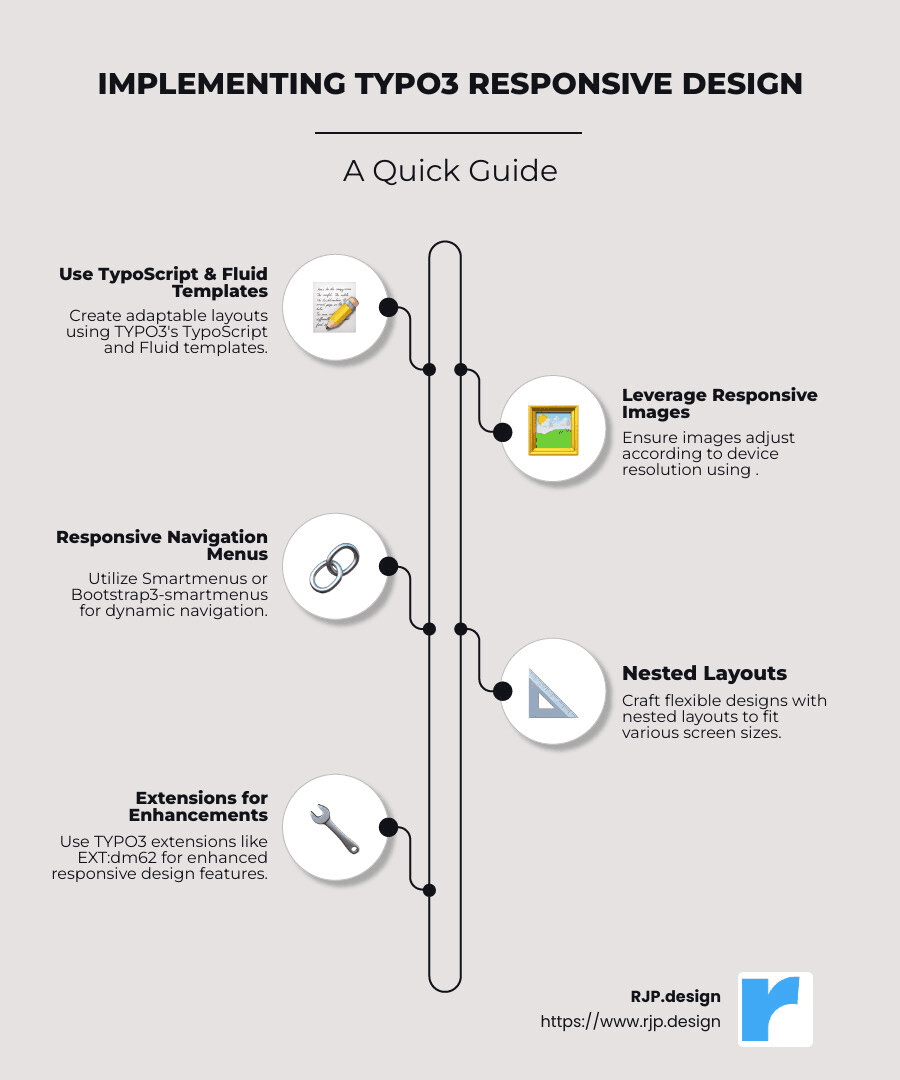
TYPO3 responsive design is crucial for adapting your website to the devices your customers use — whether that’s a tablet, smartphone, or computer. The essence of TYPO3 responsive design lies in fluid interfaces that adjust and look good on any screen size. This guide will introduce you to the basics of leveraging TYPO3 for building responsive designs, ensuring your site is user-friendly on all platforms. Here’s a quick rundown for those looking for fast guidance:
Use Typoscript and Fluid Templates: TYPO3’s TypoScript and Fluid templates help in creating adaptable layouts.
Implement Responsive Images: Leveraging the
<img srcset>attribute ensures images are crisp and adjust according to device resolution.Responsive Navigation Menus: Employ Smartmenus or Bootstrap3-smartmenus for dynamic navigation suited for any screen size.
My name is Ross Plumer, and with years of experience in digital marketing and website design, I specialize in typo3 responsive design. My expertise helps businesses transition from outdated platforms to responsive, efficient digital presences.
Terms related to typo3 responsive design:
Understanding TYPO3 Responsive Design
Key Features of TYPO3 for Responsive Design
When it comes to TYPO3 responsive design, several powerful features stand out. These tools help you ensure that your website looks stunning on any device, from the smallest smartphone to the largest desktop monitor.
Fluid ViewHelper
The Fluid ViewHelper in TYPO3 is a cornerstone for creating responsive layouts. It allows developers to define how content should adapt to different screen sizes. By using the <f:media /> tag, you can dynamically adjust images’ dimensions, alt text, and other attributes, making your site more flexible and user-friendly.
srcset Attribute
A vital part of responsive design is delivering images that are perfectly sized for each device. The srcset attribute in the <img> tag enables you to specify different image sources for various screen resolutions. This feature ensures that users always see the best quality image without unnecessary loading times, enhancing performance and user experience.
Crop Feature
Introduced in TYPO3 version 8.7, the Crop Feature gives you more control over how images are displayed. It allows for precise cropping and resizing directly within the TYPO3 backend. This means you can tailor each image to fit different layouts and devices, maintaining visual consistency across your site.
Implementing Responsive Images in TYPO3
Implementing responsive images is a critical step in TYPO3 responsive design. It helps your site load faster and look better on any device.
Responsive Images with TYPO3 Core
TYPO3’s core provides robust tools for implementing responsive images. By using the Fluid ViewHelper and the srcset attribute, you can ensure that images automatically adjust to fit different screen sizes and resolutions.
Here’s a simple example using the <img srcset> attribute:
This code snippet demonstrates how to define multiple image sources for different widths, ensuring that each device gets the most appropriate image.
Nested Layouts
TYPO3 also supports nested layouts, which are essential for creating complex yet responsive designs. This feature allows you to stack and arrange content dynamically, ensuring that your website adapts gracefully to different devices.
By combining these features, you can create a seamless and responsive experience for your users. This not only improves usability but also boosts your site’s performance, making it a win-win for both you and your visitors.
Step-by-Step Guide to Implementing Responsive Design in TYPO3
Creating Responsive Navigation Menus
When working with TYPO3, crafting a responsive navigation menu is crucial for a seamless user experience across devices. Let’s explore how to implement a responsive navigation menu using TypoScript, Fluid Templates, and Smartmenus.
TypoScript and Fluid Templates
TypoScript is the configuration language in TYPO3 that allows you to define the behavior and structure of your website. To create a responsive menu, you start by configuring TypoScript to set up the navigation structure. This involves defining HMENU and TMENU objects, which control the menu’s hierarchy and appearance.
Here’s a basic example:
In this snippet, HMENU defines the menu, and TMENU specifies how each menu item should be rendered. You can further customize these settings to create multi-level menus.
Smartmenus and Bootstrap3-smartmenus
To improve your menu with interactivity and responsiveness, integrate Smartmenus or Bootstrap3-smartmenus. These JavaScript libraries provide advanced features like dropdowns and keyboard navigation, making your menu more accessible.
To implement Smartmenus, you need to include the library’s CSS and JavaScript files in your TYPO3 template. After that, initialize Smartmenus in your JavaScript:
This code snippet initializes Smartmenus on an element with the ID mainMenu, changing it into a fully responsive navigation menu.
Leveraging TYPO3 Extensions for Responsive Design
TYPO3’s extensibility is one of its greatest strengths. You can improve your site’s responsive capabilities by leveraging various TYPO3 extensions.
EXT:dm62 and Foundation Framework
The EXT:dm62 extension integrates the Foundation Framework into TYPO3, offering a robust grid system and responsive components. This framework simplifies the process of creating responsive, mobile-first layouts.
Gridelements
Gridelements is another powerful extension that adds flexibility to TYPO3. It allows you to create complex, nested layouts with ease. By using Gridelements, you can build responsive grid-based layouts that adapt seamlessly to different screen sizes.
Here’s how you might set up a grid layout with Gridelements:
Install Gridelements: Add the extension through the TYPO3 Extension Manager.
Configure Grids: Define your grid elements in the backend, specifying how content should be arranged.
Apply Grids: Use the grid elements in your pages to structure content responsively.
By combining these tools and techniques, you can effectively implement a responsive design in TYPO3 that is both functional and visually appealing. This approach not only improves user experience but also ensures your site performs optimally across all devices.
Frequently Asked Questions about TYPO3 Responsive Design
How do I create responsive images in TYPO3?
Creating responsive images in TYPO3 is essential for optimizing website performance across different devices. Here are some key methods:
Fluid ViewHelper
<f:media />: This TYPO3 Core feature allows you to embed images with attributes like width, height, alt, and title. It helps in rendering images that adapt to various screen sizes.<img srcset />Attribute: To deliver the right image size for different devices, use thesrcsetattribute. It enables browsers to select the most appropriate image size, enhancing load times and user experience.TYPO3 Crop Feature: Available since TYPO3 v8.7, this feature allows you to crop and resize images directly within the backend. It gives you flexibility in managing images without external tools.
What is the best way to implement responsive navigation in TYPO3?
Implementing a responsive navigation menu in TYPO3 involves several steps:
Use TypoScript and Fluid Templates: Define your menu with TypoScript using HMENU and TMENU objects. Customize the structure and styling to ensure the menu adapts to various screen sizes.
Integrate Smartmenus or Bootstrap3-smartmenus: These JavaScript libraries improve your menu with features like dropdowns and keyboard navigation. They help create a seamless and interactive user experience.
How can TYPO3 extensions improve responsive design?
TYPO3 extensions can significantly improve your site’s responsive design capabilities:
EXT:dm62: This extension integrates the Foundation Framework, providing a comprehensive set of responsive components and a grid system. It simplifies creating mobile-first layouts.
Gridelements: This extension allows for complex, nested layouts. It helps structure content responsively, making it easy to adapt to various devices.
To use Gridelements:
Install: Add Gridelements via the TYPO3 Extension Manager.
Configure: Set up your grid elements in the backend.
Implement: Use the grids on your pages to arrange content responsively.
By leveraging these tools and features, you can effectively implement a robust TYPO3 responsive design that improves user experience across all devices.
Conclusion
At RJP.design, we pride ourselves on delivering high-quality service that meets the unique needs of each client. Our expertise in TYPO3 responsive design ensures that websites not only look great but also perform efficiently across all devices. This adaptability is vital in today’s mobile-first world.
Our team focuses on client satisfaction, working closely with you to implement responsive design strategies that align with your brand and goals. Whether it’s through crafting fluid layouts, optimizing images, or integrating advanced navigation systems, we ensure your website is both visually appealing and functionally robust.
By choosing RJP.design, you are not just getting a website; you are investing in a partnership with a team that is dedicated to your success. Our down-to-earth approach means we listen, adapt, and deliver solutions that exceed expectations.
For more on how we can improve your online presence, visit our Web Design & Development page. Let’s transform your site from zero to hero together!